How to Get WhatsApp Business API Without Technical Expertise | ChatKar
Learn how to get WhatsApp Business API step by step, what you need before setup, how Meta onboarding works, how to connect an existing or new number, and how ChatKar simplifies the process.
How to Get WhatsApp Business API Without Technical Expertise
Getting started with the WhatsApp Business API does not necessarily mean hiring a developer or building an API integration from scratch.
Businesses can connect WhatsApp through the official WhatsApp Business Platform using supported onboarding methods. With a platform such as ChatKar, much of the technical setup can be handled through a guided onboarding flow instead of requiring you to build the API layer yourself.
This guide explains what you need before starting, how the setup works, how to connect an existing or new WhatsApp number, what happens after onboarding, common setup issues and how ChatKar can simplify the process.
Quick Answer: How Do I Get WhatsApp Business API?
You can get started by setting up the required WhatsApp Business assets, choosing an onboarding method, connecting an eligible WhatsApp number, completing the required business information and then connecting the account to your business software or WhatsApp platform.
With ChatKar, businesses can connect through Meta's Embedded Signup flow, and ChatKar states that it can help provision a WhatsApp Business Account or connect an existing one, subject to Meta's requirements. :contentReference[oaicite:1]{index=1}
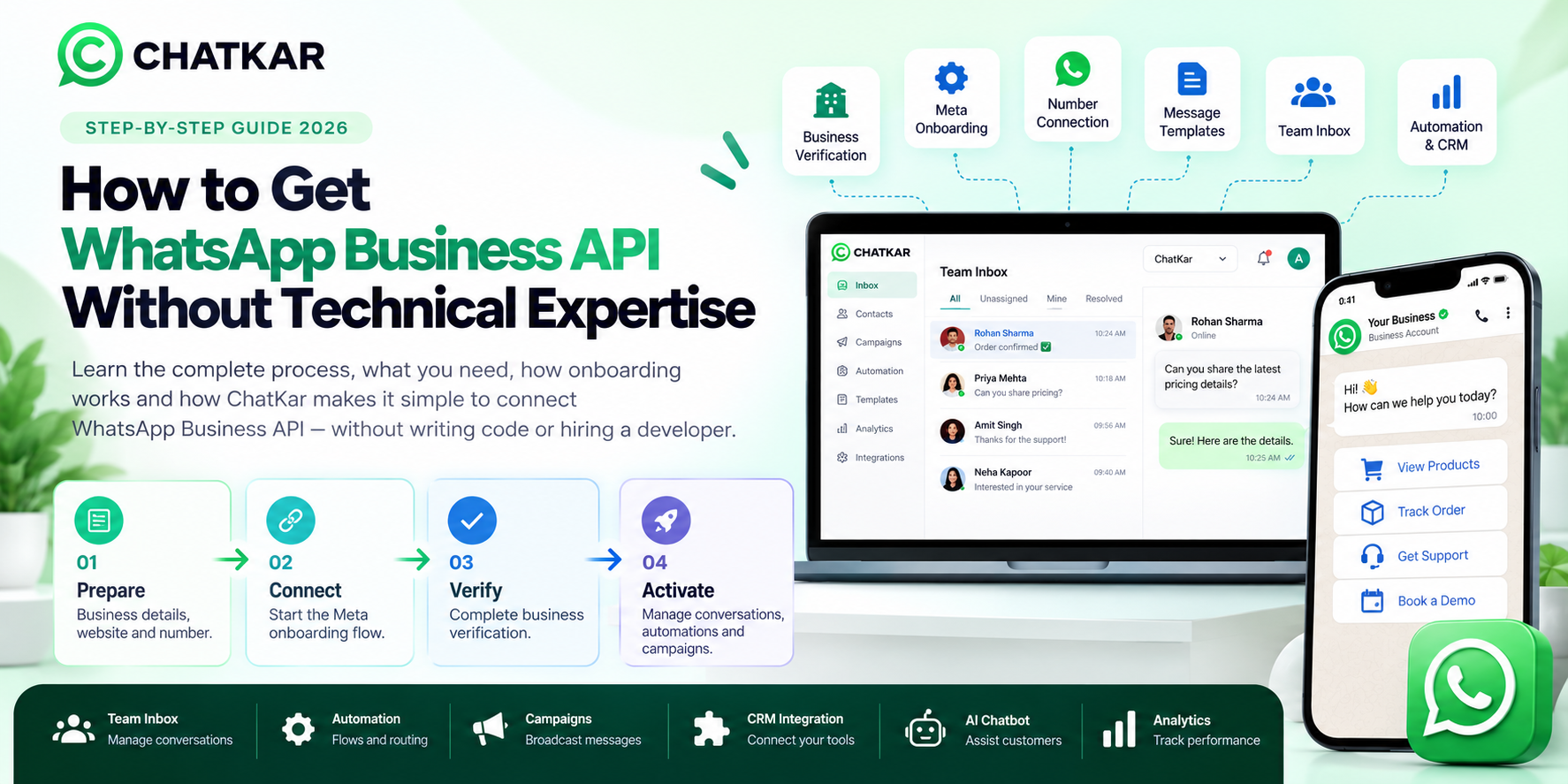
Business details, website and WhatsApp number.
Start the supported Meta onboarding flow.
Complete the required verification steps.
Connect WhatsApp to your business workflow.
What Do You Need Before Getting WhatsApp Business API?
Preparing the basic business information before starting can make the onboarding process much smoother.
Business name, category and other details requested during onboarding.
A professional website can help establish the identity of the business.
Use an eligible number that you intend to connect to the business account.
You may need access to the relevant Meta business assets during onboarding.
Exact requirements can vary according to your business, country, account status and Meta's current onboarding policies. Prepare accurate business information rather than trying to work around verification requirements.
Can You Use an Existing WhatsApp Number?
In many cases, businesses want to know whether they can use a number they already use for WhatsApp.
The answer depends on the number, account setup and the onboarding method available for that account. ChatKar currently states that eligible existing WhatsApp numbers can be connected, or a new business number can be set up through the supported Meta onboarding process. :contentReference[oaicite:2]{index=2}
Existing Number
- Useful when customers already know the number.
- Can preserve an established business communication channel where supported.
- Eligibility and migration conditions need to be checked.
New Business Number
- Useful for a new support or sales channel.
- Keeps the existing personal/business app number separate.
- Can provide a clean start for a dedicated communication workflow.
How to Get WhatsApp Business API Step by Step
The exact screens can change as Meta updates its products, but the overall onboarding flow follows the same business logic.
Step 1: Choose Your WhatsApp Business Platform Setup
Decide how you want to manage WhatsApp.
You can work directly with the WhatsApp Business Platform APIs, use an integration provider or use a complete business platform such as ChatKar.
For most businesses, the important question is not only "How do I get the API?" but also "How will I manage conversations after I get it?"
Step 2: Create or Connect Your Business Account
Start the supported Meta onboarding process and provide the requested business information.
If you already have a suitable WhatsApp Business Account, you may be able to connect it rather than creating a completely new setup.
Step 3: Select the WhatsApp Number
Choose the number you want to use for the business communication channel.
Depending on the account and onboarding route, you may connect an eligible existing number or use a new number.
Decide in advance whether the number will be used for sales, customer support, transactional messaging, marketing or a combination of approved business workflows.
Step 4: Complete Number Verification
WhatsApp may require the phone number to be verified as part of the onboarding process.
Keep access to the selected number available so you can complete the verification step when requested.
Step 5: Complete the Business Setup
Add the relevant business information, profile information and other details required by the selected setup.
Make sure the business name, website and account information are accurate and consistent.
Step 6: Connect Your Business Software
Once the WhatsApp Business setup is ready, connect it to the system you will use to manage conversations.
Step 7: Test Before Going Live
Do not immediately start a large campaign after connecting the number.
First test:
- Inbound messages
- Outbound responses
- Team assignment
- Automated flows
- Message templates
- CRM integration
- Webhooks or API connections
- Human handover
What Is Meta Embedded Signup?
Embedded Signup is a guided onboarding approach that allows businesses to connect their WhatsApp Business setup through an integrated partner experience rather than manually configuring every technical step.
ChatKar currently uses Meta's Embedded Signup flow as one of its supported WhatsApp onboarding methods. :contentReference[oaicite:3]{index=3}
Why This Helps
- Guided setup instead of a completely manual configuration.
- Less technical work for non-developers.
- Faster connection to supported business software.
- Lower chance of missing an onboarding step.
- Lets the business focus on communication workflows rather than API plumbing.
Do You Need a Developer to Get WhatsApp Business API?
Not always. If your objective is to connect WhatsApp to a ready-made business platform, you may not need to build the API integration yourself.
A developer becomes more relevant when you need a highly customized setup, such as:
- Custom backend integrations
- Custom CRM logic
- Complex webhooks
- Custom dashboards
- Proprietary business applications
- Advanced API orchestration
For a standard business operation, a platform such as ChatKar can reduce the amount of custom development needed because the workspace already includes inbox, flows, campaigns, templates, integrations and AI capabilities. :contentReference[oaicite:4]{index=4}
What Should You Do After Getting WhatsApp Business API?
Getting the API connected is only the beginning. The next step is building an actual communication workflow.
Prepare approved templates for appropriate business-initiated communication.
Automate common customer journeys.
Assign conversations to the correct team.
Keep customer and lead information synchronized.
Verify that customers can reach a human when needed.
Monitor results before scaling campaigns.
Common WhatsApp API Setup Mistakes
Decide whether the number will mainly handle sales, support, notifications, campaigns or a combination.
Keep business information accurate and consistent during onboarding.
Decide carefully whether an existing number or a new dedicated business number is better for your operating model.
Test inbound messages, outbound messages, templates, routing and human handover before scaling.
First understand the customer journey, then configure the tools around it.
The API enables communication; your workflow determines whether that communication actually helps the business.
Get WhatsApp Business API With ChatKar
ChatKar is designed to reduce the technical effort involved in connecting WhatsApp to everyday business operations.
ChatKar currently supports Meta Embedded Signup, and its onboarding information states that businesses can connect an eligible existing WhatsApp number or set up a new business number subject to Meta's requirements. :contentReference[oaicite:5]{index=5}
Guided onboarding
Manage customer conversations
Build customer journeys
Manage business messaging
Connect other systems
Assist customer conversations
The benefit is that you do not need to build every part of the WhatsApp customer-communication system yourself.
Does Getting WhatsApp Business API Cost Money?
The answer depends on the setup you choose.
There can be separate costs for:
- WhatsApp messaging through Meta's pricing model
- Third-party software or platform subscription
- Custom development, if required
- Applicable taxes or other billing charges
For a detailed breakdown of current India messaging costs, see: WhatsApp Business API Pricing in India 2026
If you are still learning what the API itself is, read: WhatsApp Business API: What It Is, How It Works and How Businesses Use It
Frequently Asked Questions
How do I get WhatsApp Business API?
Start with the WhatsApp Business Platform onboarding process, provide the required business details, connect an eligible WhatsApp number and then connect the account to your business software.
Do I need a developer to set up WhatsApp Business API?
Not necessarily. A guided onboarding solution such as Meta Embedded Signup can reduce technical setup work. Custom development may still be needed for highly customized integrations.
Can I use my existing WhatsApp number?
An eligible existing number may be connectable depending on the account and onboarding setup. A new business number can also be used.
Can ChatKar help me get WhatsApp Business API?
Yes. ChatKar currently supports Meta Embedded Signup and states that it can help connect an eligible existing number or set up a new business number, subject to Meta's requirements.
How long does WhatsApp API setup take?
Setup time depends on the business, onboarding method, number and any verification or configuration steps required. A guided setup can reduce the amount of manual technical work, but no fixed completion time should be assumed for every business.
Can I use WhatsApp API without WhatsApp Business App?
Businesses can use the WhatsApp Business Platform through supported API onboarding methods without treating the mobile Business App as the core management interface.
What can I do after connecting WhatsApp API?
You can build supported workflows for customer support, sales, notifications, campaigns, automation, CRM integration and other business communication use cases.
Is WhatsApp Business API suitable for small businesses?
It can be useful when a small business needs automation, team collaboration, CRM integration or structured workflows. A business with very simple manual communication may not need an API-based setup yet.
Final Thoughts
Getting WhatsApp Business API does not have to mean building a technical system from the ground up.
The modern setup can be much simpler:
The more important decision is what happens after the API is connected. Businesses should plan the customer journey, team responsibilities, automation, templates, CRM connection and human handover before scaling communication.
ChatKar provides a guided way to connect WhatsApp through Meta's supported onboarding flow and then manage the business communication layer from one workspace.
Ready to Connect WhatsApp for Your Business?
Set up your WhatsApp business workflow with team inbox, automation, templates, campaigns, integrations and AI through ChatKar.
Start With ChatKar View Pricing