When a customer adds a product to a Shopify store but leaves before placing an order, the sale is not necessarily lost. A well-planned WhatsApp communication journey can give the shopper a useful reminder, answer a question and make it easier to return to checkout. After an order is placed, the same channel can also support order and shipping updates.
Shopify WhatsApp integration connects store activity and customer information with WhatsApp messaging and automation. Depending on the integration, a business can use it for abandoned-cart or checkout reminders, order notifications, customer support, product enquiries and follow-up workflows.
Quick answer: What is Shopify WhatsApp integration?
It is a connection between a Shopify store and a WhatsApp Business messaging solution. The connection can pass permitted customer, cart or order events to a messaging workflow, which can then send an appropriate message, update a customer record or route a conversation to the team. The exact functions depend on the app, permissions, configuration and Meta messaging rules.
What Can You Do With Shopify and WhatsApp Together?
A useful integration connects the customer's shopping journey with the right business action. For example, a shopper may need a reminder before buying, while an existing customer may simply want to know whether an order has shipped.
Abandoned cart recoveryRemind eligible shoppers about items left in their cart and provide a route back to the store.
Checkout recoveryFollow up with eligible customers who started checkout but did not complete an order.
Order notificationsSend relevant updates after an order is created, confirmed or processed.
Shipping updatesShare dispatch or delivery-status information when the connected system receives it.
Customer supportHelp customers ask about products, payments, delivery or returns in a familiar channel.
Repeat-purchase campaignsReach customers with relevant offers or product updates when they have given the required consent.
How a Shopify–WhatsApp Customer Journey Works
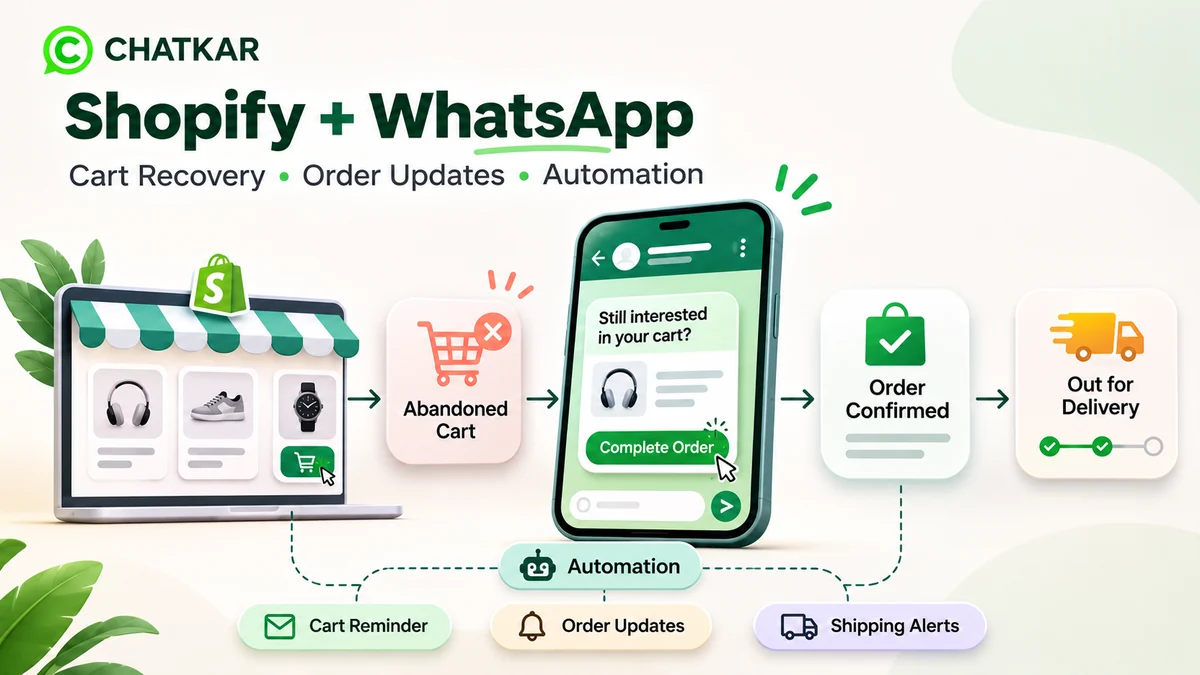
The following animation illustrates one possible journey. It is a workflow example, not a claim that every Shopify or WhatsApp account supports every step automatically.
How Shopify WhatsApp Automation Works
A customer journey from abandoned cart to successful delivery.
🛍️
1. Store Visit
Customer browses products and adds items to the cart.
🛒
2. Abandoned Cart
Customer leaves without completing the purchase.
💬
3. WhatsApp Reminder
An eligible customer receives a permitted cart reminder.
✅
4. Order Confirmed
Customer completes the purchase on the store.
🚚
5. Delivery Update
Customer receives relevant shipping information.
Customer journey automation illustrated
A typical integration follows these stages:
- Store event: Shopify records a relevant event, such as a cart or checkout being abandoned, or an order being created.
- Data transfer: The integration passes the event and permitted data to the connected messaging or automation platform.
- Eligibility check: The workflow checks customer consent, message purpose, timing and other configured conditions.
- Message or action: The system sends an eligible WhatsApp message, updates a record or assigns the conversation.
- Customer response: If the customer replies, the team or configured automation can continue the conversation.
- Measurement: The business reviews delivery, response, recovery and order outcomes using the reporting available in its connected systems.
Shopify Abandoned Cart vs Abandoned Checkout
These terms are often used interchangeably, but they can describe different stages of the shopping journey. Shopify's automation options distinguish product browsing, cart abandonment and checkout abandonment.
| Journey stage | What happened | Possible follow-up |
|---|
| Product browse | The visitor viewed a product but did not add it to the cart or purchase. | A relevant product reminder, where permitted and supported. |
| Abandoned cart | The shopper added one or more products to a cart but did not proceed to checkout. | A cart reminder with a link back to the store. |
| Abandoned checkout | The shopper started checkout but did not complete the order. | A checkout recovery message that helps the customer continue the purchase. |
| Completed order | The customer placed an order. | Relevant order, fulfilment and delivery updates. |
Shopify documents automation templates for recovering abandoned carts and abandoned checkouts, as well as converting abandoned product browsing. Available channels and eligibility depend on Shopify's current feature settings and the store's configuration. See Shopify's marketing automation guide.
How to Recover Abandoned Carts Through WhatsApp
A cart recovery workflow should be helpful rather than repetitive. The aim is to remind an eligible customer about the items they selected and make it easy to return to the store.
1. Identify the right event
Decide whether the workflow should respond to an abandoned cart or an abandoned checkout. These are different events and may expose different information to the integration.
2. Check customer eligibility
Before sending a marketing reminder, verify that the customer has explicitly opted in to receive WhatsApp marketing messages and that the data and event are available for the intended workflow. Do not assume that entering a phone number at checkout automatically gives permission for promotional WhatsApp messages.
3. Choose a suitable delay
Set a sensible delay and test it against the store's buying cycle. Suppress the reminder if the customer has already placed an order, the cart is no longer valid or another exclusion rule applies. There is no single recovery delay that is right for every store.
4. Prepare an approved message
When a business initiates a message outside the customer service window, WhatsApp requires an approved message template. Promotional cart recovery should be treated as marketing communication, not relabelled as a utility message to avoid marketing requirements. Use a template that accurately describes the reminder and follows Meta's rules.
5. Include a useful return path
Where supported, include the correct cart or checkout link so the customer can return to the store. Do not include an expired, shared or incorrect checkout URL.
6. Stop or suppress unnecessary reminders
Check for completed orders and customer opt-outs before sending. Set frequency limits so a shopper does not receive repeated messages for the same cart.
Example WhatsApp Cart Recovery Message
Example template copy — submit for approval before use
Hi {{1}}, you left a few items in your shopping cart at {{2}}. You can return to your cart using the link below whenever you're ready.
Button: Return to cart
Use the correct approved template category and include the appropriate opt-out wording and variables required by your provider. Approval is not guaranteed.
Automating Shopify Order and Shipping Updates
After a customer places an order, useful updates can reduce uncertainty and help the support team handle fewer routine status questions. Depending on the Shopify events and connected fulfilment system, a business may send messages for:
- Order received or confirmed.
- Payment status, where relevant and supported.
- Order processing or fulfilment.
- Shipment dispatched with a valid tracking link.
- Delivery status received from the carrier or fulfilment system.
- Return or refund status when the store system provides a reliable update.
Keep these messages factual. Do not say that an order has shipped or been delivered until the connected source system reports that status. Transaction-related notifications may qualify for a utility template when they meet Meta's category rules and are not mixed with promotional content. The final category is subject to Meta's review.
Shopify WhatsApp Integration: What Do You Need?
Before setting up an integration, confirm the following:
- A Shopify store: access to the store and permission to install or authorise the required integration.
- A WhatsApp Business Platform setup: an eligible business account and phone number configured through the supported connection method.
- Customer consent records: a reliable way to record and respect WhatsApp marketing opt-ins and opt-outs.
- Approved message templates: templates for business-initiated messages when required.
- Event and data permissions: the minimum Shopify data and events required for the workflows.
- Automation rules: delays, eligibility checks, exclusions, routing and follow-up actions.
- Testing and monitoring: test orders, carts, message delivery, links, opt-outs and workflow failures before launch.
How to Connect Shopify with ChatKar
ChatKar's current features page lists Shopify and WooCommerce integrations, OAuth, order webhooks and contact sync. It also lists a Flow Builder that can connect triggers and actions, alongside WhatsApp campaigns, team inbox and catalog capabilities. The exact configuration available to a workspace should be confirmed before implementation.
A practical setup process is:
- Review the integration: confirm the Shopify connection and required permissions with the ChatKar team or current integration documentation.
- Authorise the store: connect the intended Shopify store using the supported authorisation method.
- Choose the events: decide which cart, checkout, order or fulfilment events should trigger a workflow.
- Map the data: check that customer details, product information, order references and links map to the correct fields.
- Build the automation: configure the trigger, delay, consent and eligibility checks, message template and next action.
- Test end to end: test an abandoned cart, a completed purchase, an opt-out, a duplicate event and a failed message.
- Review performance: monitor workflow execution and business outcomes, then improve the journey based on real results.
Explore Shopify and WhatsApp automation with ChatKar
Review ChatKar's current integrations, Flow Builder, team inbox and WhatsApp capabilities before choosing the workflow for your store.
Explore ChatKar features | View ChatKar plans
WhatsApp Rules: Consent, Templates and the 24-Hour Window
WhatsApp automation must follow the WhatsApp Business Messaging Policy. A business should obtain clear opt-in for the kinds of messages it plans to send, respect opt-outs and use approved templates when initiating conversations outside the customer service window.
- Marketing consent: send WhatsApp marketing only to people who have explicitly opted in to receive it. Shopify explains how to collect WhatsApp marketing consent during checkout in its WhatsApp marketing setup guide.
- Template approval: business-initiated messages outside the 24-hour customer service window must use an approved template.
- Customer service window: when a customer messages the business, a 24-hour window opens or resets. Free-form replies are allowed during that window, subject to policy.
- Opt-outs: provide a clear way to stop marketing messages and honour the customer's request.
- Message purpose: do not misclassify promotional reminders as utility messages. Keep marketing and transactional content appropriately separated.
Read the WhatsApp Business Messaging Policy and Shopify's WhatsApp marketing requirements before launching campaigns. Policies and product availability can change, so check the latest documentation at implementation time.
Interactive Calculator: Estimate the Value of Cart Recovery
Use this simple scenario calculator to estimate the gross sales value associated with a recovery assumption. Enter your own store figures. The recovery percentage is an assumption you choose, not a promised ChatKar or industry result.
How to Measure Shopify WhatsApp Automation
Message volume alone does not show whether an integration is working. Track the customer and store outcomes that matter:
- Eligible contacts: how many customers can legally and technically receive the message.
- Messages sent and delivered: whether the workflow and template are functioning.
- Clicks and replies: whether customers engage with the message.
- Recovered orders: how many eligible abandoned carts or checkouts lead to completed orders within your chosen attribution window.
- Revenue and margin: compare recovered sales with discounts, messaging costs and other expenses.
- Opt-outs and complaints: monitor negative signals and reduce unwanted or excessive messaging.
- Support workload: check whether order updates reduce repetitive status enquiries.
Define attribution rules before comparing results. A customer may return to the store through another channel, so do not attribute every later order to a WhatsApp reminder without a consistent measurement method.
Common Shopify WhatsApp Integration Mistakes
- Messaging customers without valid consent: a phone number in Shopify is not, by itself, proof of WhatsApp marketing opt-in.
- Using the wrong template category: marketing and utility messages have different purposes and requirements.
- Sending duplicate reminders: use event checks and suppression rules to prevent repeated messages.
- Ignoring completed orders: cancel pending recovery messages when an order is placed.
- Using expired checkout links: confirm that the destination is valid and belongs to the intended customer journey.
- Promising delivery before carrier confirmation: trigger delivery updates from a reliable fulfilment source.
- Measuring only clicks: review completed orders, revenue, margin and opt-outs as well.
- Skipping end-to-end tests: test real event flows, failed events, opt-outs and duplicate notifications before launch.
Frequently Asked Questions
1. Can Shopify integrate with WhatsApp?
Yes. Shopify merchants can use supported WhatsApp messaging options and third-party integrations. The available features depend on the app, region, account eligibility and setup. Shopify also documents WhatsApp marketing automations in Shopify Messaging.
2. Can I send WhatsApp abandoned cart reminders from Shopify?
Shopify documents abandoned-cart and abandoned-checkout marketing automation options using WhatsApp where available. Customers must meet the applicable marketing consent requirements, and business-initiated WhatsApp messages must follow template rules.
3. Do customers need to opt in before receiving WhatsApp cart recovery messages?
Yes. WhatsApp marketing messages should be sent only to customers who have explicitly opted in. A phone number collected during checkout should not automatically be treated as WhatsApp marketing consent.
4. Can Shopify send automatic order updates through WhatsApp?
Order and shipping notifications can be automated when the selected integration supports the relevant Shopify and fulfilment events. The message should reflect the actual status in the connected source system.
5. Is WhatsApp cart recovery a utility message?
A promotional reminder intended to encourage a customer to complete a purchase is marketing communication. Do not label it as utility merely to bypass marketing consent or template requirements. Meta determines template approval and category.
6. What is the difference between abandoned cart and abandoned checkout?
An abandoned cart generally means products were added to a cart but the shopper did not proceed to checkout. An abandoned checkout means the shopper started checkout but did not complete the purchase. Shopify has distinct automation options for these stages.
7. Can I connect Shopify with ChatKar?
ChatKar's current features page lists Shopify integration, OAuth, order webhooks and contact sync. Confirm the required plan, permissions and workflow configuration with ChatKar before implementation.
8. Can WhatsApp automation send tracking links?
It can send tracking information when the connected Shopify or fulfilment system provides a valid tracking link and the integration is configured to use it. Test that the link belongs to the correct order.
9. Can I use WhatsApp for both marketing and order notifications?
Yes, but keep the purpose of each message clear. Marketing messages require the appropriate marketing opt-in and approved templates when required. Transactional updates must accurately relate to the customer's order and follow the applicable utility-message rules.
10. How do I calculate the return from abandoned cart recovery?
Start with recovered orders and the average order value to estimate recovered sales. Then subtract relevant discounts, messaging costs, refunds, taxes and other costs to understand the contribution to profit. Use consistent attribution rules when measuring results.
Final Thoughts
Connecting Shopify with WhatsApp can make the shopping journey easier to manage, from cart reminders to post-purchase updates and customer support. The value comes from connecting the right store events to useful messages and reliable follow-up actions.
Start with one workflow, such as an eligible abandoned-cart reminder or an order confirmation. Make sure customer consent, templates, data mapping and suppression rules are correct. Test the complete journey, measure completed orders and customer experience, and expand only when the workflow is working reliably.
Related Reading